Tutorial - Create / Organize Languages
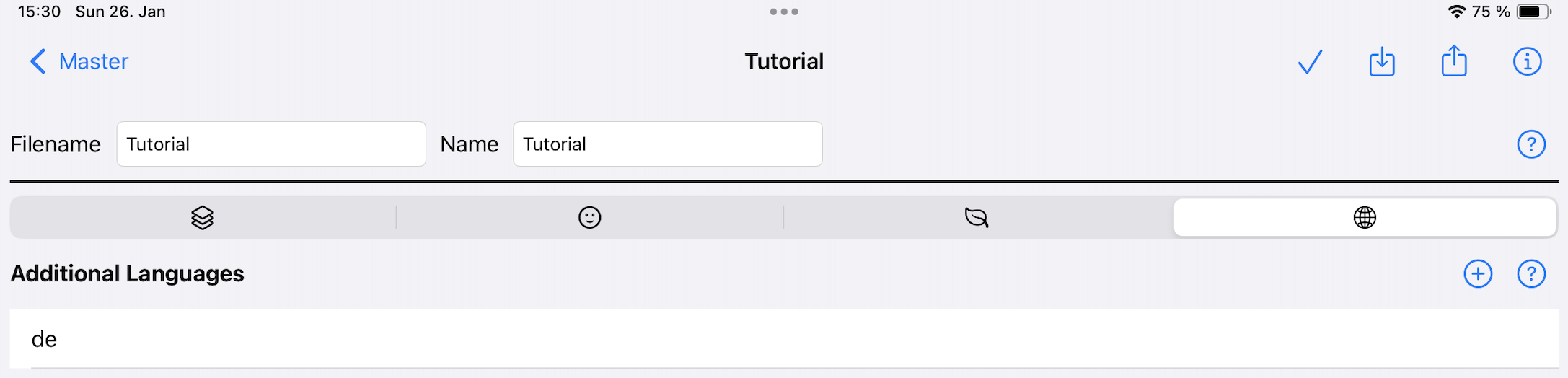
The Language feature allows you to localize your level pack for players around the world. By adding translations, you can make your dungeons accessible to a global audience. The localization system is designed to be simple and efficient, focusing on the most important text elements that players will encounter.
Note: You must have at least one level created before you can add language translations.
What Can Be Localized
The following elements in your level pack can be translated into different languages:
- Level Names: Used in save games and level selection screens
- Custom Scroll Text: Messages shown when players read or learn from scrolls
- Custom Game Item Names: Displayed in the game inventory
- Wall Text: Text that appears on walls throughout your dungeon
The system is intentionally kept simple because dungeon crawlers typically don’t have extensive dialogue, focusing instead on exploration and combat.
Add a Language
To add a new language to your level pack:
- Open the Languages tab in the level pack overview
- Click the + button to add a new language
- Select the language you want to add from the language picker
- The new language will appear in the overview list
Once added, the language will be available for translation in your level pack.
Manage Translations
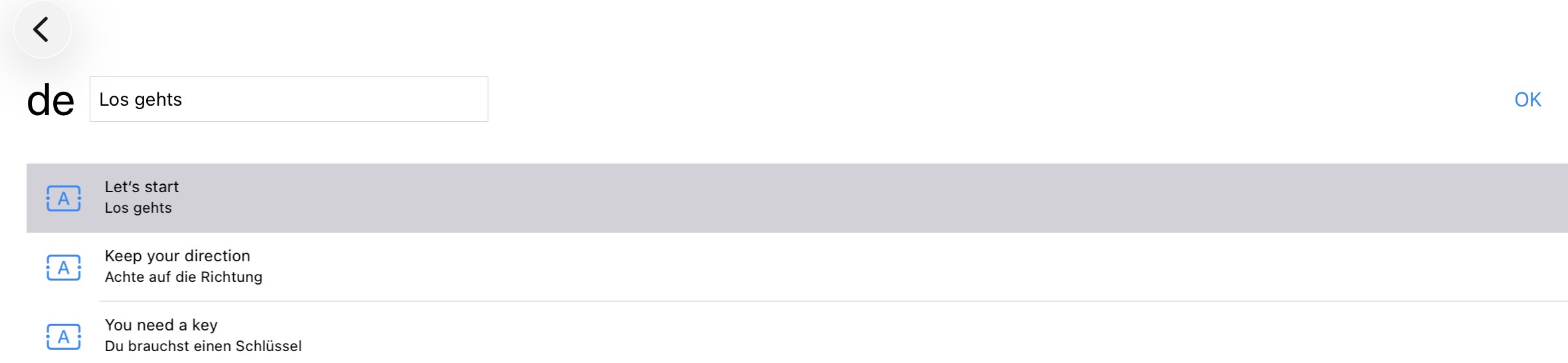
To translate content for a specific language:
- Tap on a language in the overview (e.g., “de” for German)
- You’ll see a list of all translatable elements from your level pack
- Each element has an icon indicating its type (level name, scroll text, item name, or wall text)
Translation Interface
For each translatable element, you’ll see two rows:
- First Row (English): The original text in English (default language)
- Second Row (Translation): The currently used translated text
If no translation has been entered, the English version will be used as the default fallback.
Enter a Translation
To add or edit a translation:
- Tap on the element you want to translate
- A text input field will appear at the top of the screen
- Enter your translation in the selected language
- Confirm or save the translation
The translation will be stored and used in-game when a player selects that language.