Tutorial - Add GameItems to a Level
Game items such as keys, food, potions, weapons, and treasure bring your dungeon to life and provide essential gameplay elements for players to discover and collect.
Item Positioning
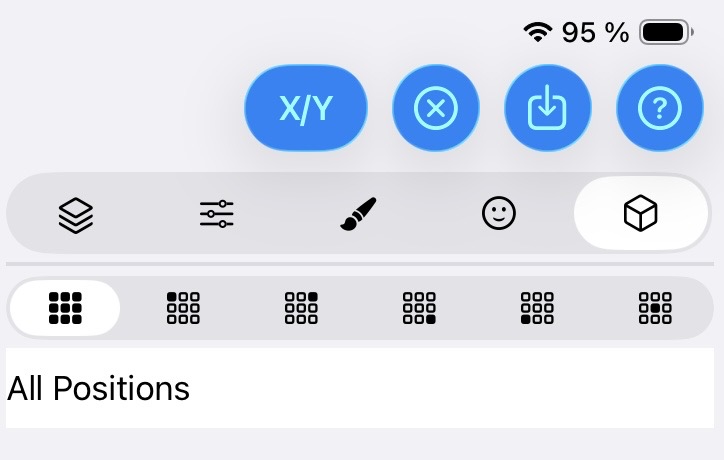
You can choose between 5 different placement positions on a tile:
- Center: Places the item in the middle of the tile
- Top Left: Places the item in the upper left corner
- Top Right: Places the item in the upper right corner
- Bottom Left: Places the item in the lower left corner
- Bottom Right: Places the item in the lower right corner
Multiple items can be placed on the same tile, either at the same position or distributed across different positions.
Add an Item
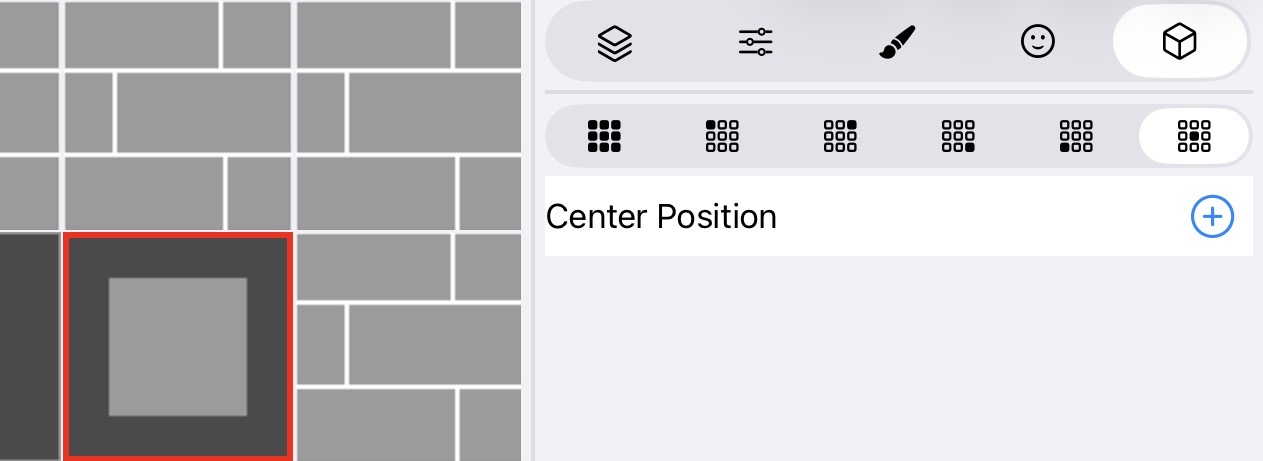
Items can be placed on various tile types including:
- Closed pits
- Floor switches
- Deactivated teleports
- Empty tiles
- Alcovens
- Chests
If you see a + button when selecting a tile, that tile type supports item placement.
Item Selection
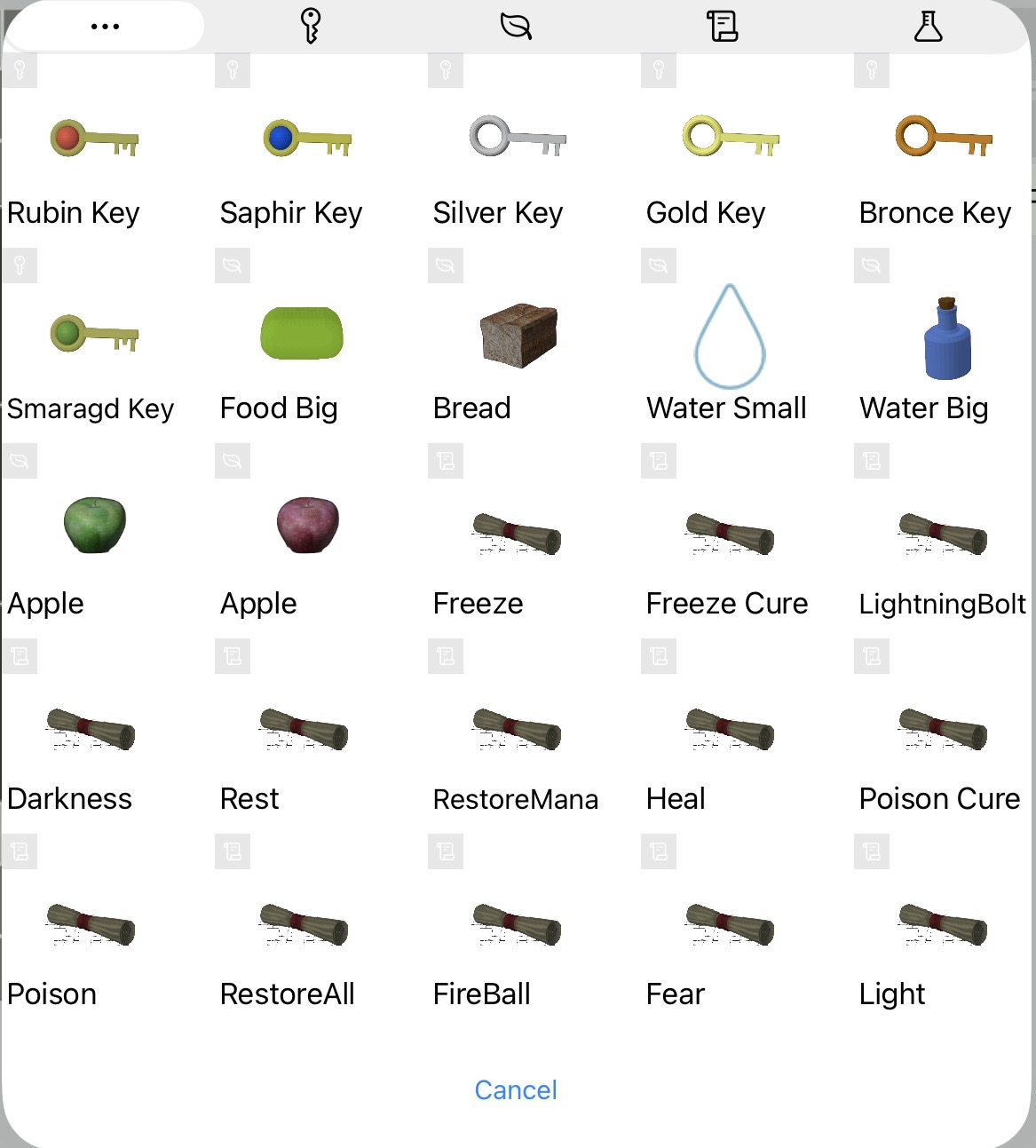
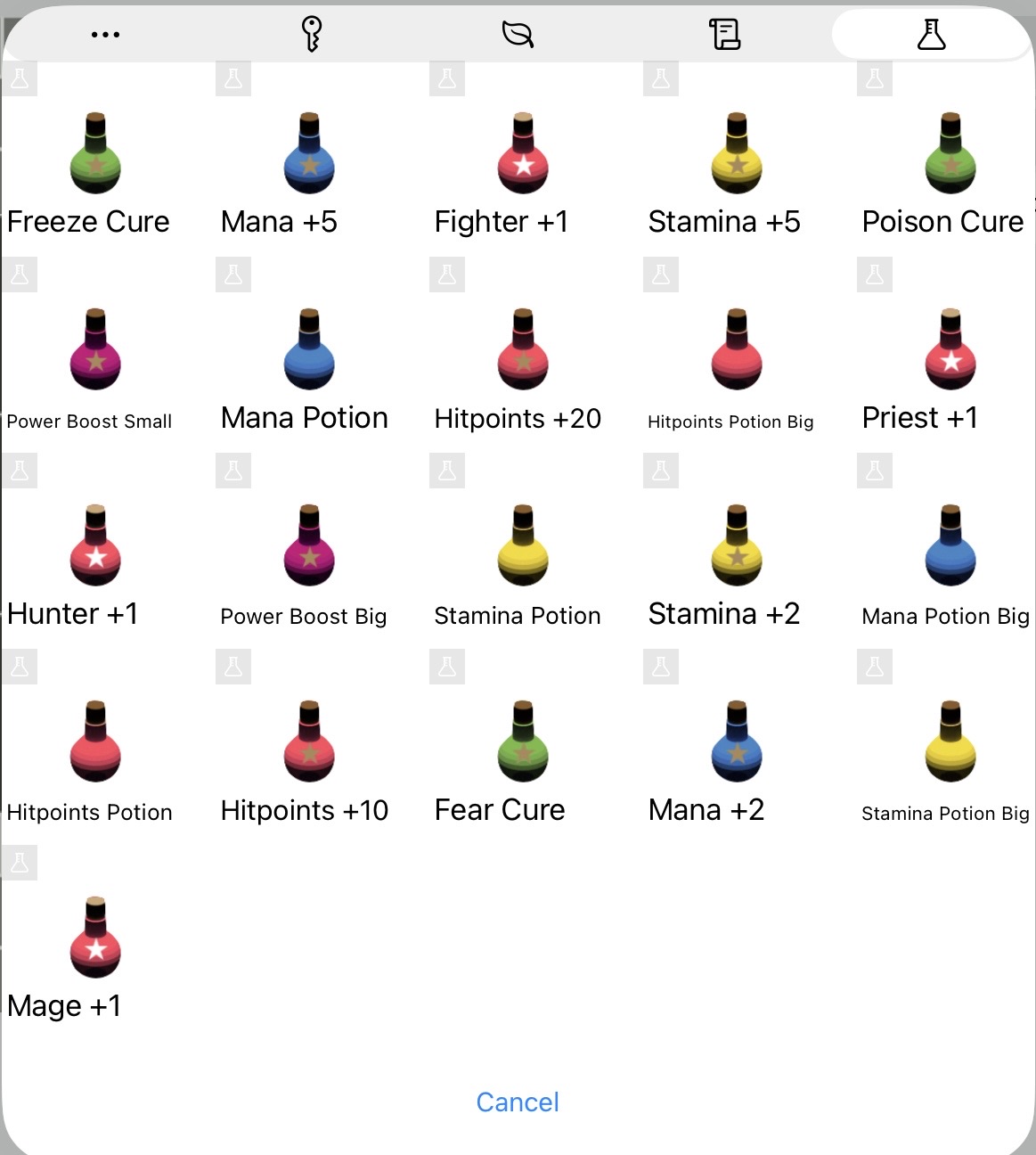
When you click the + button, the item selection dialog opens. At the top of the dialog, you’ll find a filter bar that lets you filter items by category:
 |
 |
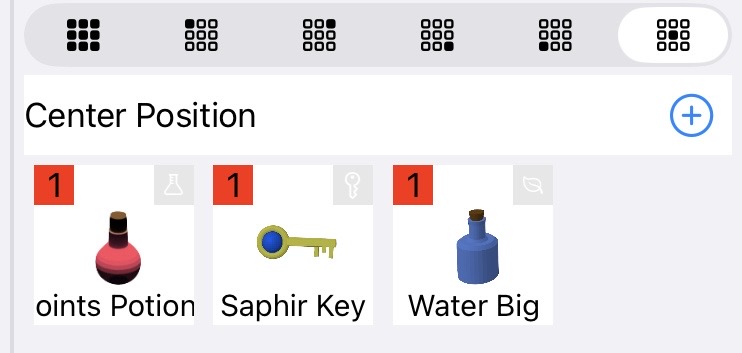 |
Categories include keys, food, potions, weapons, armor, and other item types. This makes it easy to find exactly what you’re looking for.
Adjust Item Quantity
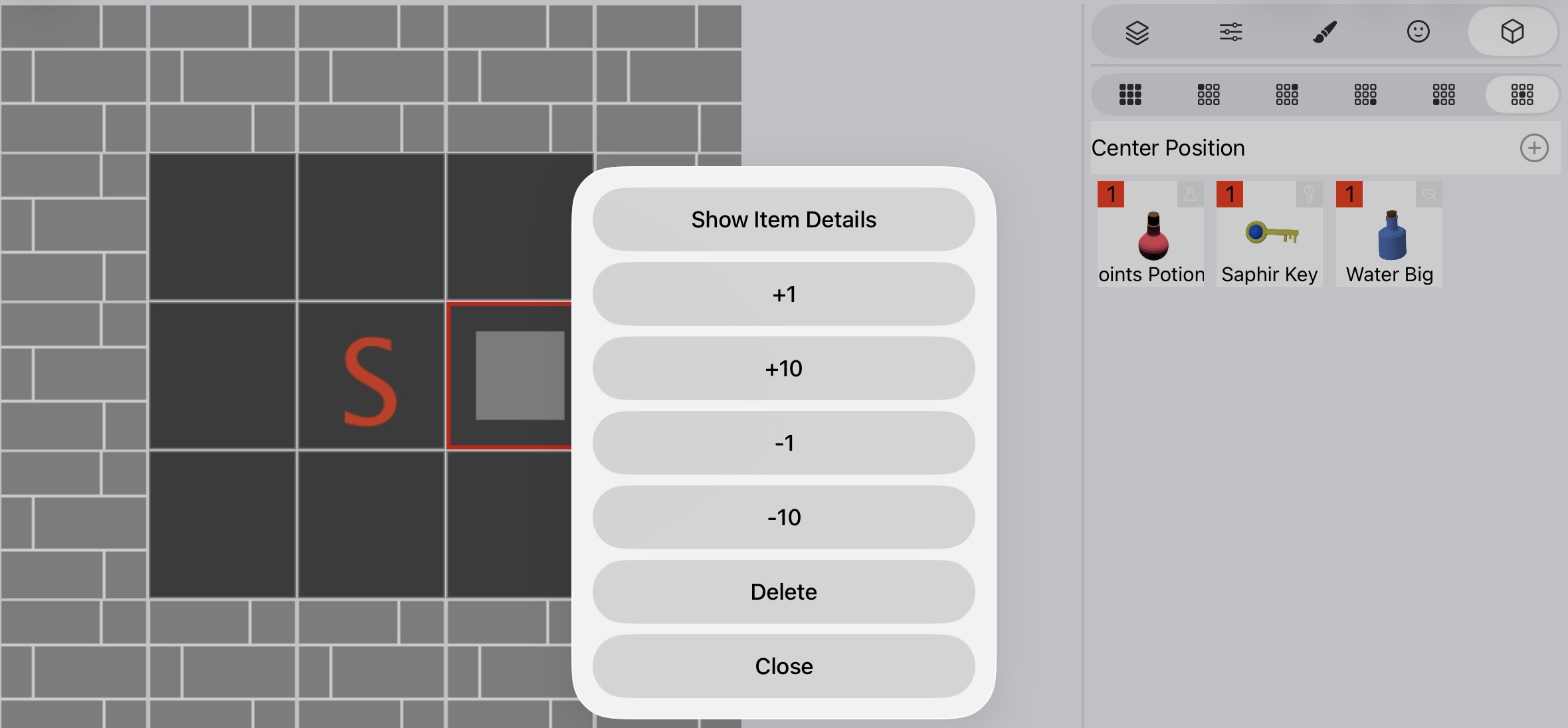
To change the quantity of an item:
- Tap on the placed item
- A popup will appear allowing you to adjust the quantity
- Set the desired number of items
View Item Details
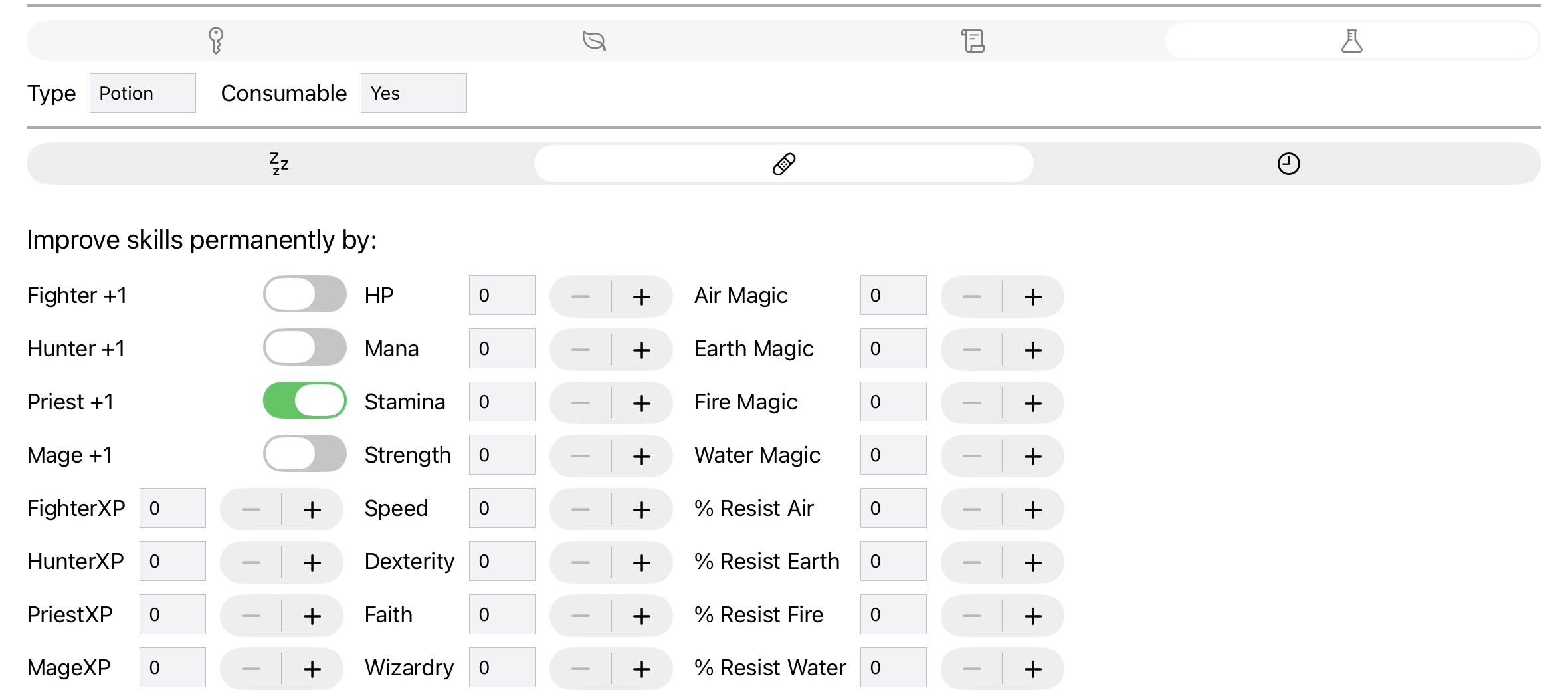
You can also open the item detail screen to see:
- Item type: What category the item belongs to
- Effects: What the item does when used or equipped
- Attributes: Stats and properties of the item
This helps you understand exactly what players will receive when they find this item in your dungeon.